






.webp)




.webp)





How to record a phone call on iPhone and Android.

If you've ever been on a phone call where something important got agreed, then spent the next half hour trying to remember exactly what was said, you'll know why this question keeps coming up. Recording a phone call is one of the things we get asked about the most. The good news is, your phone can already do it. You just need to know where to look.
This guide walks you through how to record a call on iPhone and on Android, and how to get the recording into Contented afterwards so you can turn it into documents, action points, or whatever output suits.
A quick note before you start: recording laws vary by country and state. In some places you need consent from everyone on the call, in others just one party. The simplest rule of thumb is to ask. A quick "do you mind if I record this so I can keep accurate notes?" handles it nicely (or you can read our tips for asking for consent here), and most people are fine with it once they understand why.
Recording a call on iPhone
- While on the call, tap the More (...) button on the call screen and select Call recording. Both you and the other person will hear an automated announcement letting them know the recording has started.
- When the call ends, the recording saves to your Notes app. Tap the waveform or audio bubble, then the three dots (...) or the Share icon. Select Save audio to files and pick a location like "On my iPhone" or "iCloud Drive".
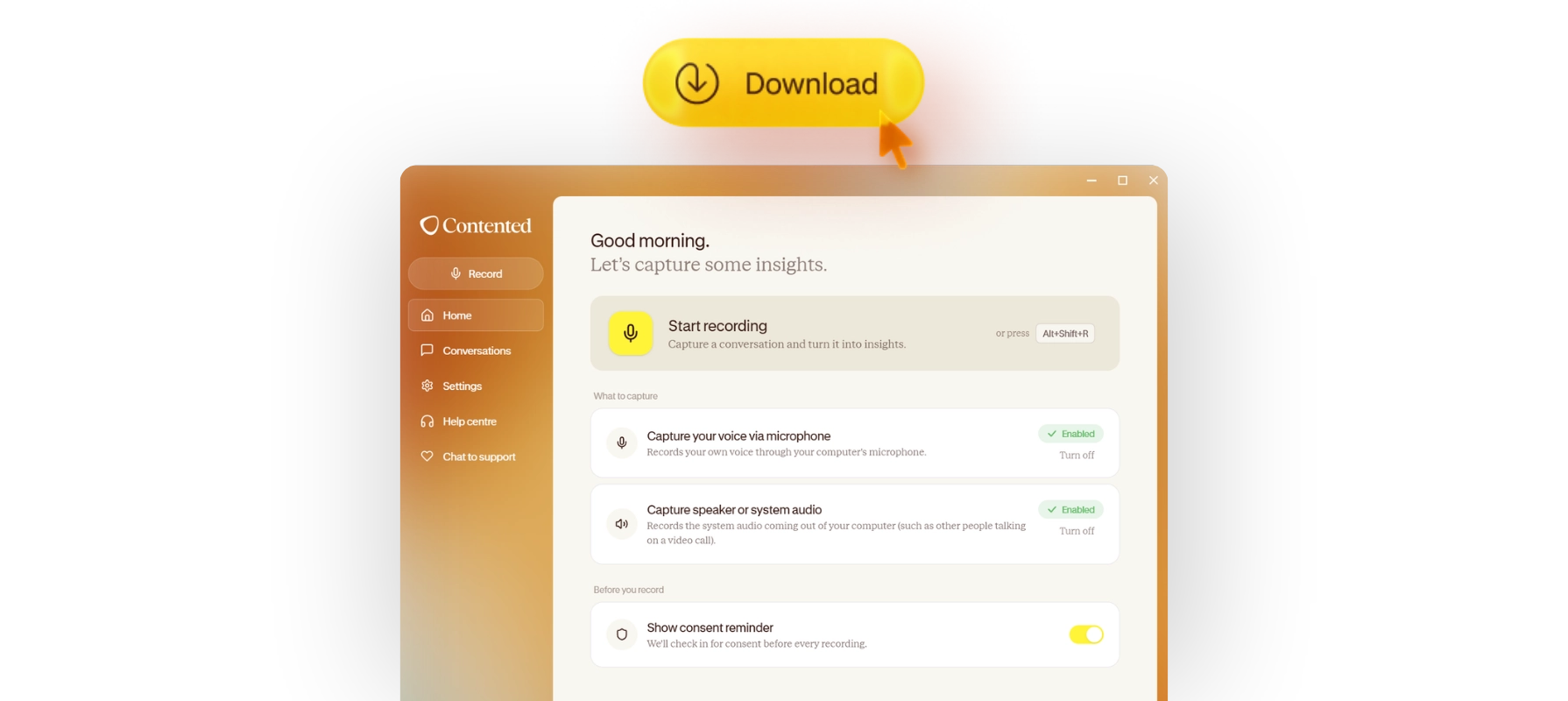
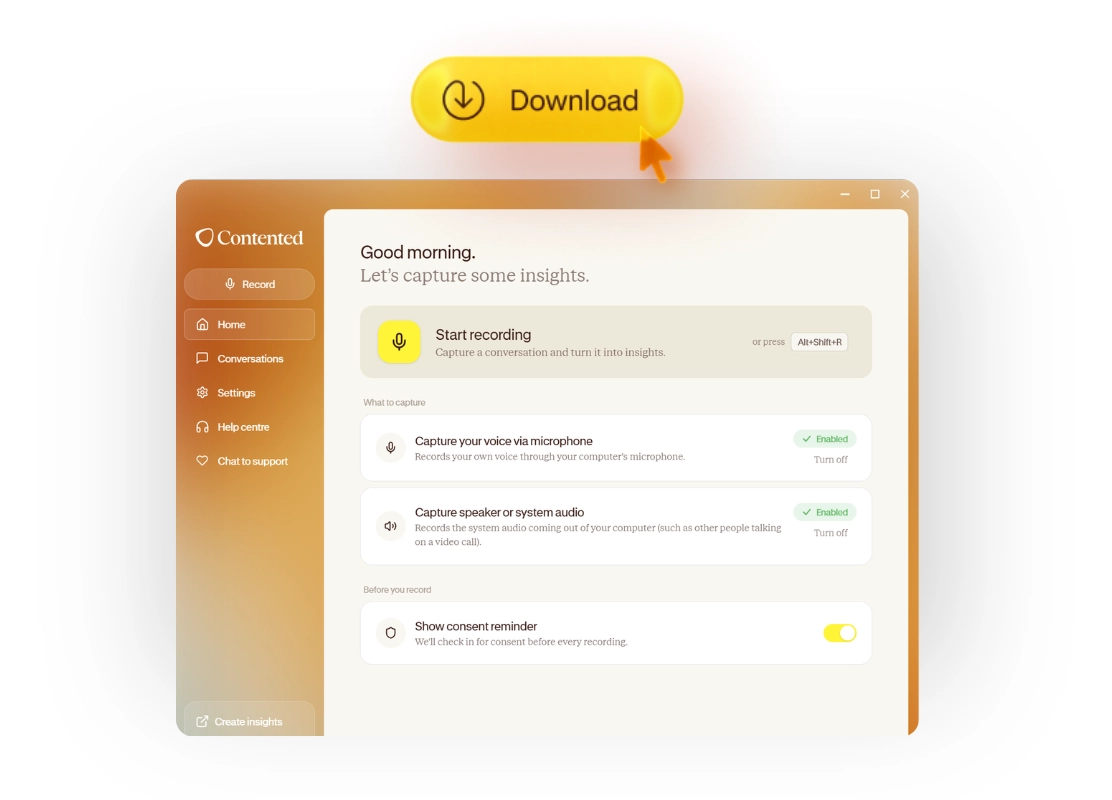
- Open your Contented workspace on desktop, click Add conversation, and upload the file. From there, create documents and insights as you normally would.
Recording a call on Android
Android is a bit less consistent than iPhone, because different manufacturers handle call recording differently. Here are the three main paths.
Option 1: Built-in recorder
If you've got a Samsung, Google Pixel, OnePlus, Xiaomi, or similar device, your phone likely has call recording built into the call screen. Tap the Record button while on the call.
Option 2: Google Phone app
If you're using the Google Phone app, a record button will appear during the call, provided you've enabled the feature in settings.
Option 3: Third-party app
If neither of the above works for your device, apps like Cube ACR or Boldbeast Recorder do the job. Open them before or during the call.
Finding the recording afterwards
Once the call ends, the recording usually saves automatically, but you might need to hunt it down. Try your Files app and look in the Call recordings folder, or check your Voice recorder app. When you find it, tap and hold the file, then select Share or Move to copy it somewhere accessible, like Google Drive or your Downloads folder.
From there, open your Contented workspace on desktop, click Add Conversation, and upload the file.
A few practical tips
If you're recording client or customer calls regularly, it's worth setting up a routine: ask for consent at the start, mention you're using a tool to help you stay present in the conversation rather than scribbling notes, and send through the summary afterwards. Most people appreciate the transparency, and the follow-up builds trust.
Also: phone audio isn't always pristine. Background noise, speakerphone, and dodgy reception all affect quality. Contented handles imperfect audio better than most tools, but you'll get the best results when the call is reasonably clear.
Got a tricky recording situation we haven't covered? Let us know. We're always adding to our guides.