






.webp)




.webp)






Download Contented for Windows to record video calls.
.webp)
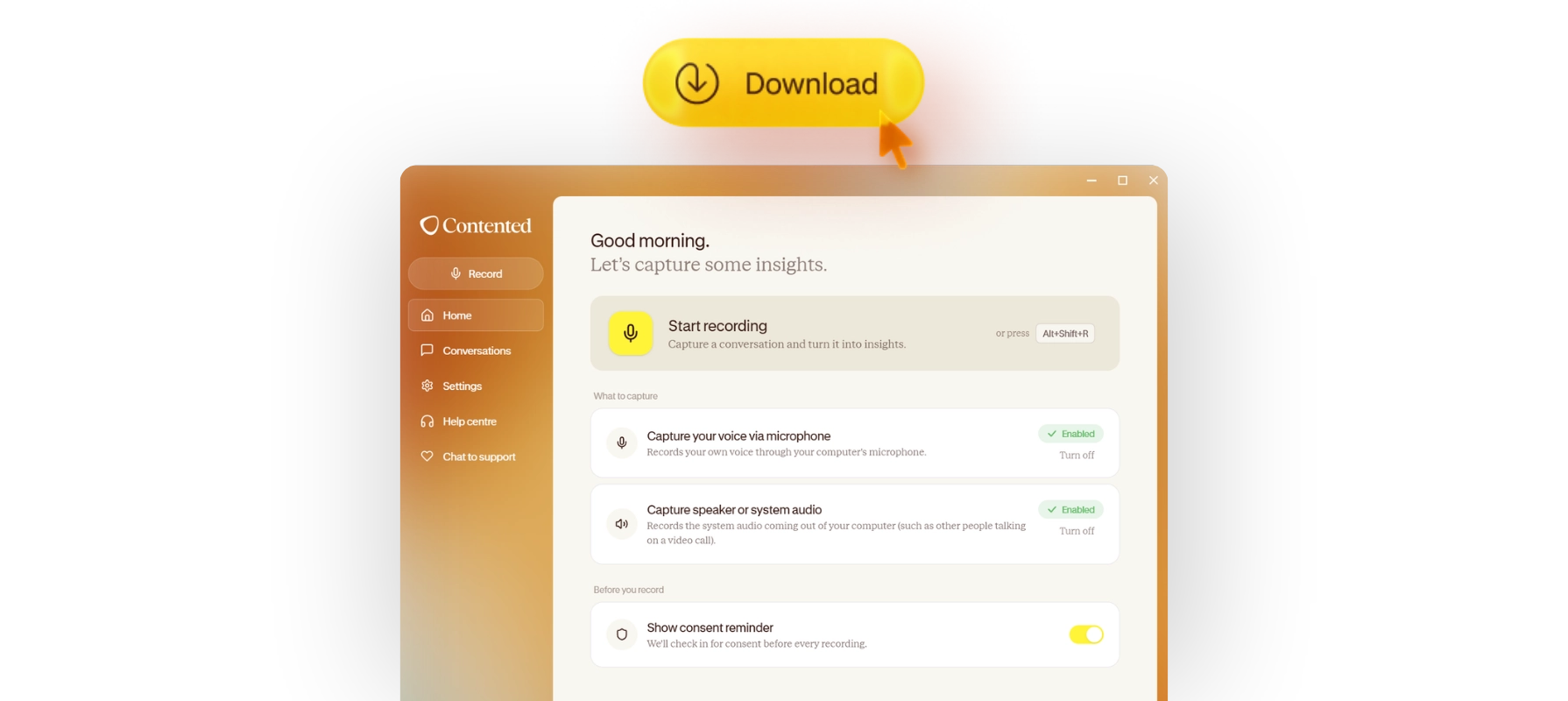
This is one we know many of you have been waiting for: Contented's new Windows app is here. Download it now.
With Contented for Windows you can capture video calls such as Teams and Zoom, via your computer's system audio, headphones, and microphone.
Combined with our mobile app, you've got a seamless way to record great conversations no matter where they happen - from online meetings and conference speakers, to site walkthroughs and your morning commute. The apps sync automatically and securely to your Contented workspace, where you turn your conversations into polished assets and insights such as a decision log, client profile, risk register, action table, board minutes, and more.
Unlike automated transcription tools such as Copilot or Gemini, Contented for Windows has an option to confirm consent before recording. It doesn't join in the background or send an automated generic summary to all attendees. You choose when you record, who you share it with, and how you want to use it.
Some ideas for what to record with Contented on your computer:
- Your weekly team meeting via video call. Create an action table including assigned tasks and delivery dates, to share straight afterwards.
- You and a colleague reviewing a pitch onscreen so you capture all the feedback and changes. Produce a decision log of what needs doing.
- Your own sales calls. Use Contented for coaching - ask what worked, what to improve, and whether there were any missed opportunities.
- A phone call with an international client. Quickly fire off a follow-up email and produce a client profile for your records.
- A useful webinar to refer back to later.
Record any conversation.
Because it works from your microphone as well as the system audio, Contented for Windows isn't limited to video calls. Use it for:
- In-person meetings, workshops, and interviews.
- Online sessions and town halls.
- Webinars and anything else playing through your speakers.
Then turn it into business-ready documents and intelligent insights.
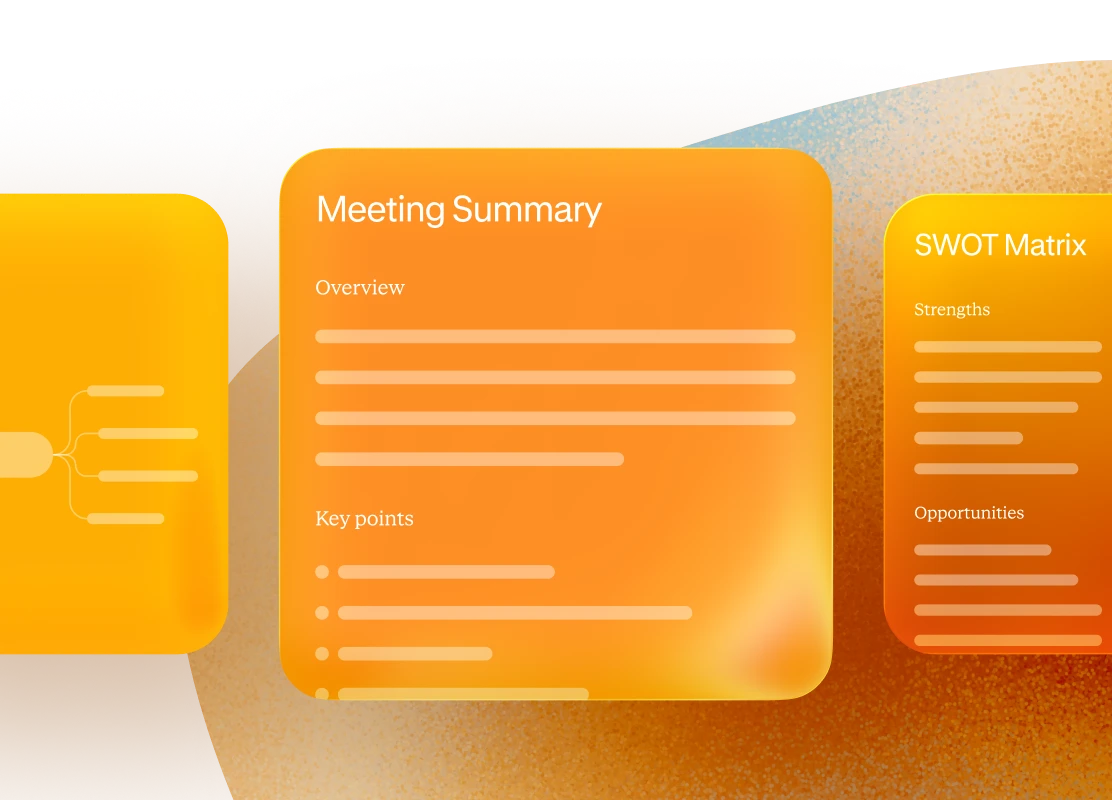
Once you stop recording, the transcription uploads securely to your Contented workspace. From there, you decide who to share it with and what to turn it into, whether that's an action table, a follow-up email, a decision log, or another output entirely.
.webp)
How to use Contented for Windows.
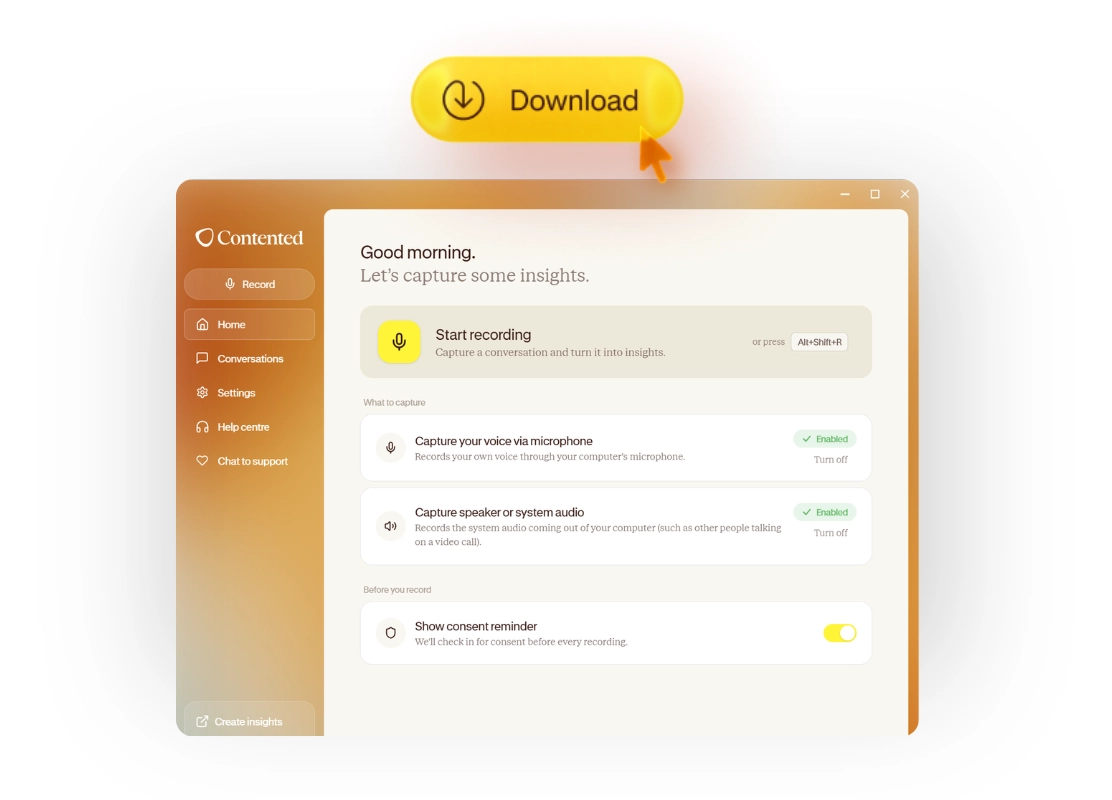
Download the app onto your computer. The download will begin automatically. Once it's finished, find it in your downloads, then open to install and run it. Log in using your existing Contented account.
If your IT team manages what you can download, support@contentedai.com can help them set it up.
To record, open the app and hit the big yellow 'Start recording' button. Confirm consent if the reminder appears, and you're underway. A small floating pill keeps pause and stop within reach, without needing the app window open.
Contented will capture the audio of the conversation via your computer and microphone - a video call, a meeting in the room, a webinar, anything you can hear. Once you've finished, the recording automatically uploads to your Contented workspace, where you can turn it into documents and insights.
The desktop app is available now for Windows. A Mac version is in development.