Contented for Windows

Download started!
Here's what's next:

Your download should start automatically. If you're on a company computer, you may need to contact your IT team to get it installed.

Step 1: open the Contented download to install the Windows desktop app

Open the download

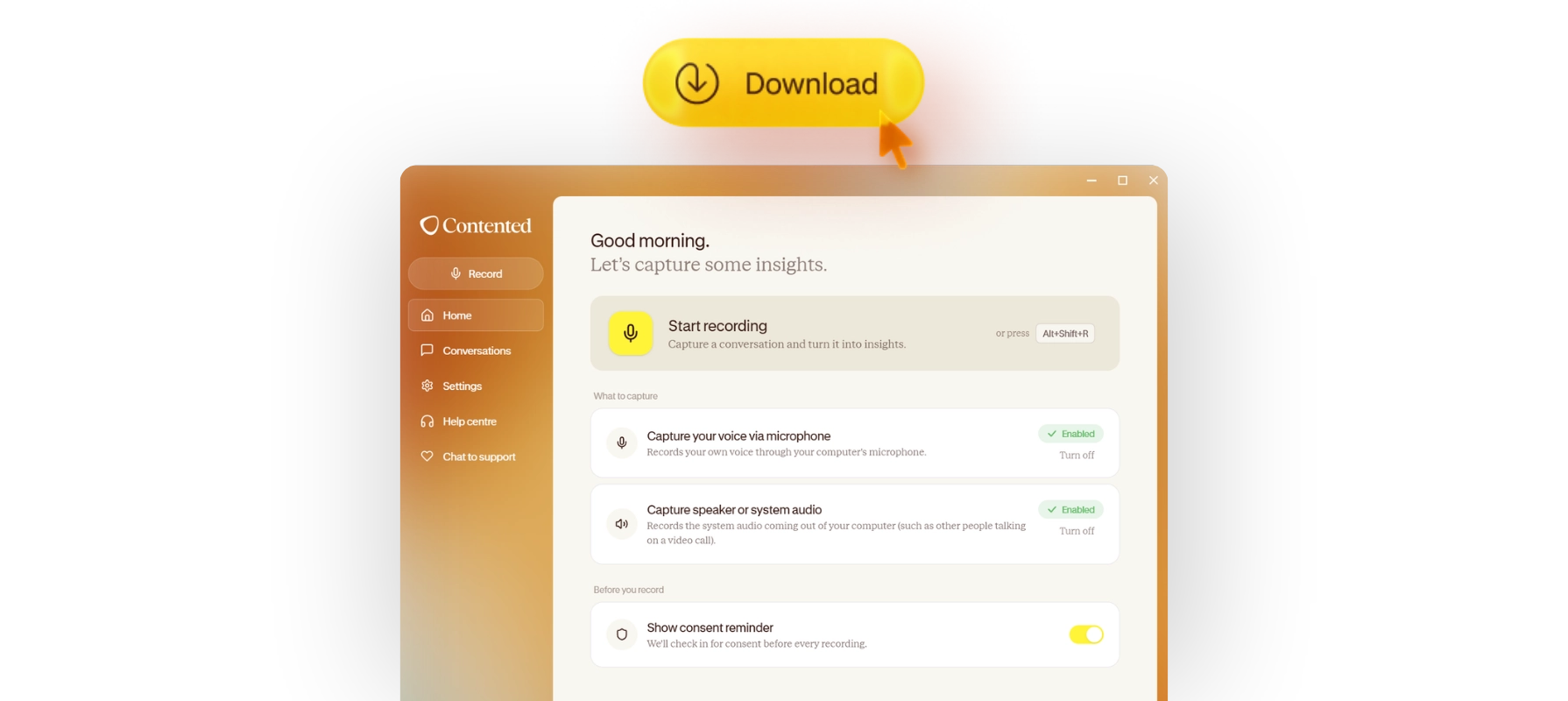
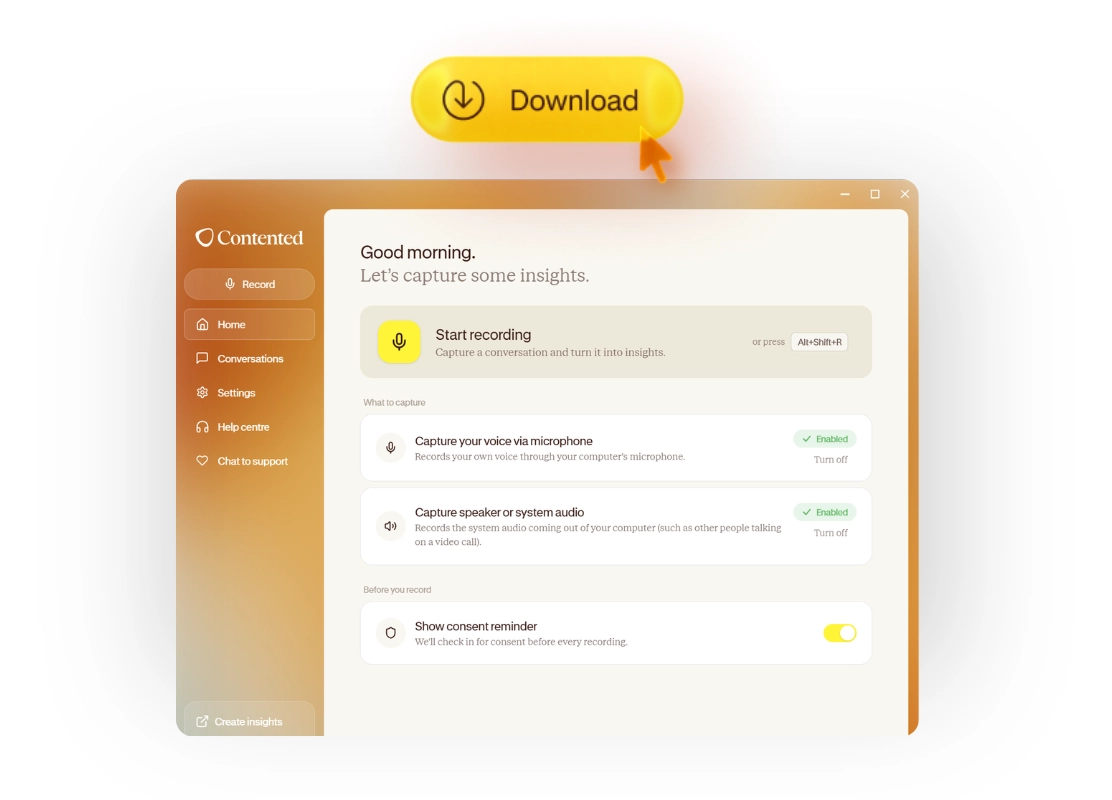
Click Contented in your downloads to install and run. Read our download guide here if you need.

Step 2: sign in to the Contented desktop app

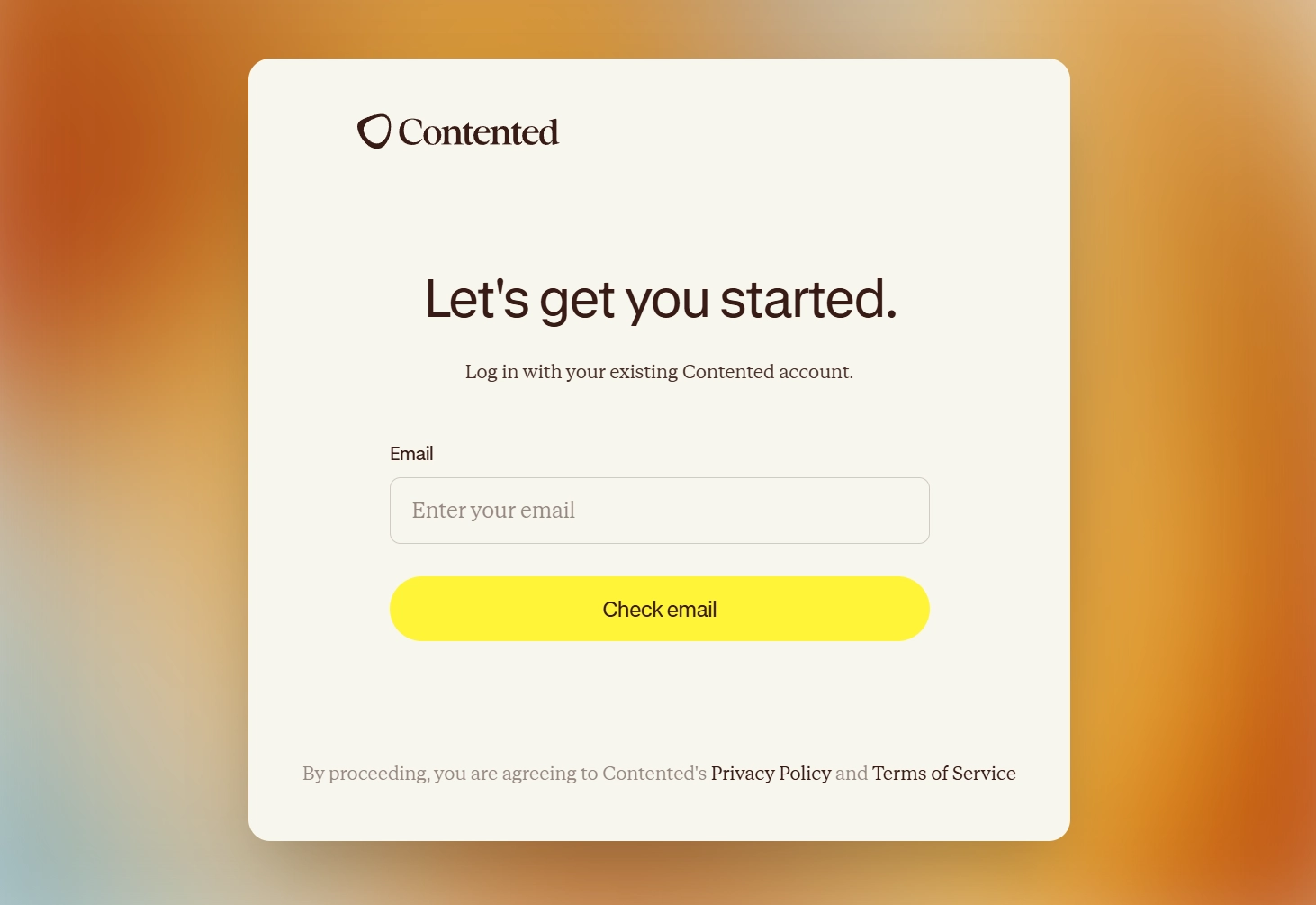
Sign in.

Use your existing Contented sign in. If you're new, set up an account here.

Step 3: start recording a conversation in the Contented desktop app

Start talking.

Hit record in the app, then create documents and insights in your workspace. Read the full guide here.

FAQs

Can’t find the answer you’re after?
Reach out to us and we’ll get back to you.

How is Contented for Windows different from the mobile app?

The mobile app captures what your phone microphone picks up (like a musing or an in-person conversation). It's great for on-the-go and in-person conversations. Contented for Windows captures your computer microphone and system audio - so it also hears everyone else on a video call, or anything playing through your computer (or headphones). It's great for video calls and meetings where you can bring your laptop.

How do I install Contented for Windows?

If your computer is managed by a company, you may need your IT team to approve the installation. We can help with this. Contact support@contentedai.com.

If you manage your own computer (ie, it's a personal computer or you have admin rights), you can install Contented yourself. You'll need a Windows computer, a Contented account, and internet access. Download the latest version of Contented for Windows. Once that's complete, go to your downloads folder and double click on the new Contented download to run and install it. Windows may ask if you'd like to allow Contented to make changes to your device - you'll need your Windows administrator credentials for this bit (if you don't know them, ask your IT team).

Once installed, open the Contented for Windows desktop app and enter the same email address you use to sign in to your Contented workspace or mobile app. Your default web browser will open automatically. Once you've successfully signed in, you'll be prompted to open the Contented desktop app and you'll be signed in automatically.

What happens during screen sharing?

If you're sharing your whole screen while recording with Contented, others will see the recording pill. If you want to keep it out of the way, share just a tab or window instead.

Where do my conversations go after recording on my computer?

Once you finish recording with the Windows app, your conversation automatically uploads to your workspace via an encrypted connection, where transcription and AI processing happen. Your data isn’t stored on your computer. Once uploaded, you can edit and create insights from your conversation in your Contented workspace on your browser.

What permissions does the Windows app need?

Microphone access and permission to capture system audio. When you first install Contented for Windows, you'll be asked to approve them.

How do I install Contented for Windows on corporate computers?

If your company manages software installs through an IT team, Contented will need to be added to your computer using our MSI installer.

Installation steps
  1. Reach out to your IT team and request the Contented app for Windows.
  2. Your IT team contacts Contented directly via support@contentedai.com
  3. Contented sends through the MSI installer, which includes a download link and a list of URLs to whitelist.
  4. Your IT team installs the software and pushes it to all relevant computers.
  5. The app will then appear on your computer.

You cannot update the app yourself on an MSI build. All updates go through your IT team. If you raise a support issue that requires a newer version, your IT team will need to be contacted to action it.